
A Hugo sitemap template for Cloudflare Pages
06 May 2026
A custom Hugo sitemap that works with a Pages worker

Image: James Sullivan on Unsplash
In our first blog we covered the basics of building the site. Having got it established, and tinkered with lots of the content, there were a couple of key improvements to make with Cloudflare and the private URLs it uses.
By default, Cloudflare Pages builds and hosts all committed versions of a site using a *.pages.dev domain. This includes commits to the main branch (the Production build config) and to other branches (the Preview build config).
You can see this if you compare the GitHub commits to the site builds (in this case the merge is squashed to one commit so it’s not exactly one to one):
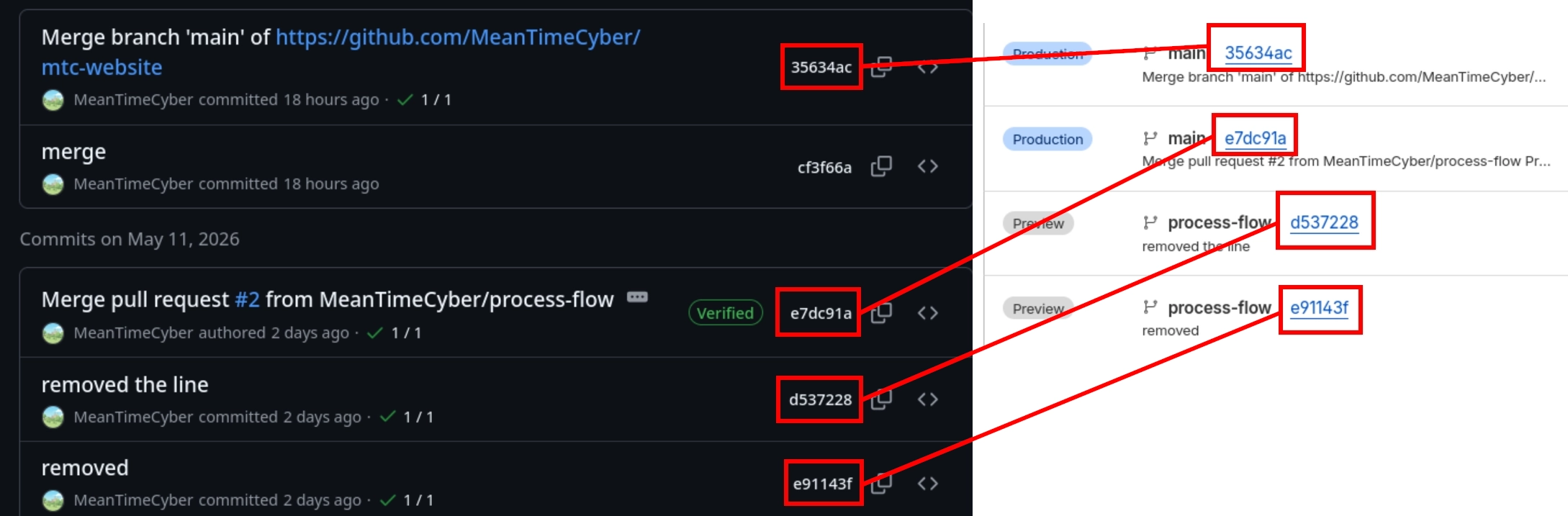
We use custom domains (a DNS CNAME) to redirect from our main domain that people visit to the pages domain of <custom pages domain>.pages.dev.
That’s nice and convenient for building and deploying, but in its default state it means all versions of the site, including staging and branched versions, are exposed to the internet. They can therefore be indexed by search engines and are visible to anyone that can find them. Here are a couple of things we can do to improve this configuration, with two other Cloudflare features.
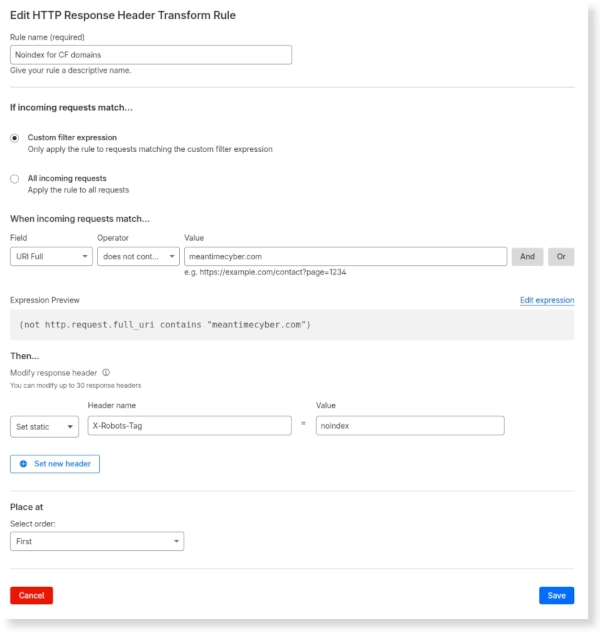
With a Cloudflare Transform Rule, we can add the X-Robots-Tag header to any site that isn’t the main domain:
Now on the Cloudflare branch domain we get the header:
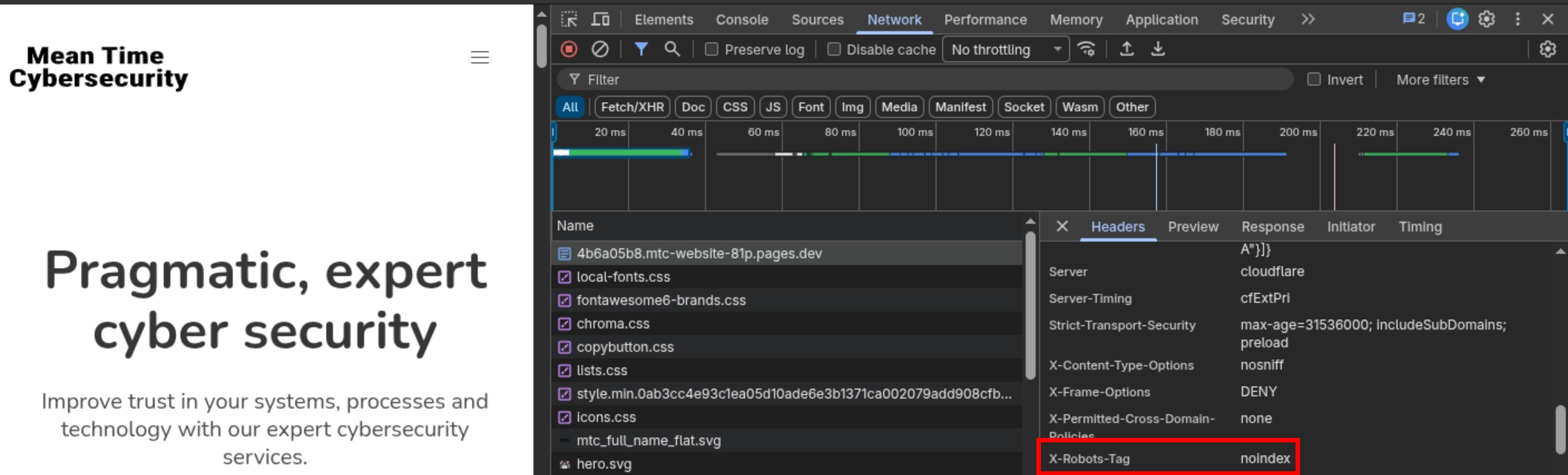
But it should not appear on the main site - worth checking that once you have the rule in place.
This approach works nicely to prevent indexing, but it doesn’t provide any privacy. A better solution is to restrict access to everything but the main site using Cloudflare Access for authentication.
Cloudflare Access is their (at first) free authentication provider, which is a very convenient way of putting authentication in front of private apps or sites that you’re running from Cloudflare.
It supports SSO, so in a work setting you can connect it to Microsoft 365 or Google Workspace to enforce login using a corporate address.
Or much more simply, put it in front of your staging site so that it’s not facing the internet, and requires a known email address to allow login.
You could add a custom staging domain and configure any non-main branch to build to that. Or skip that step, and just put it in front of any Pages domain that isn’t the main domain for the site, including any feature branches or commit-specific pages on the main branch.
To set it up, first check the Pages settings to make sure you are configuring the Preview environment:

Then enable the Access policy in the General section:
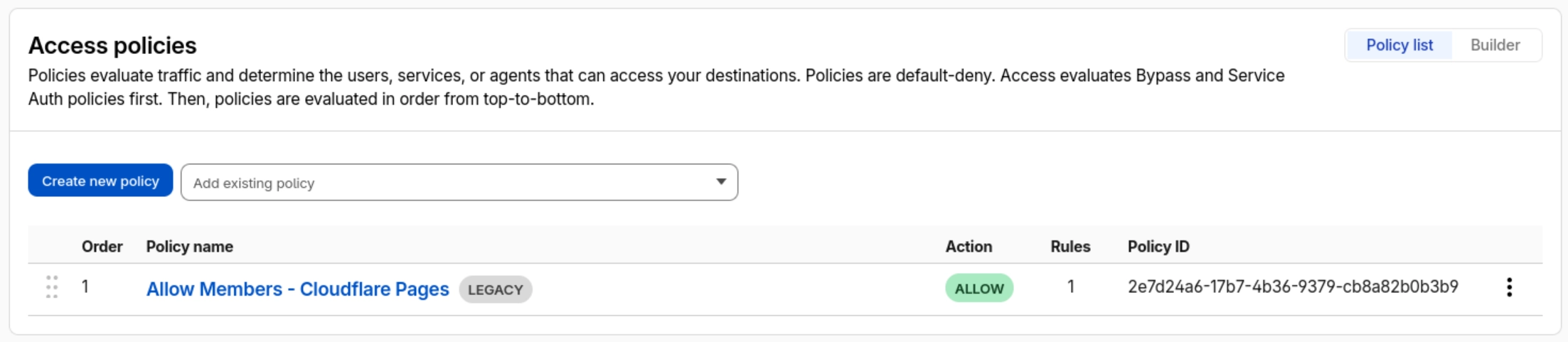
Click Manage, and you’ll first need to add a Zero Trust subscription. The free version should be fine for most small teams:
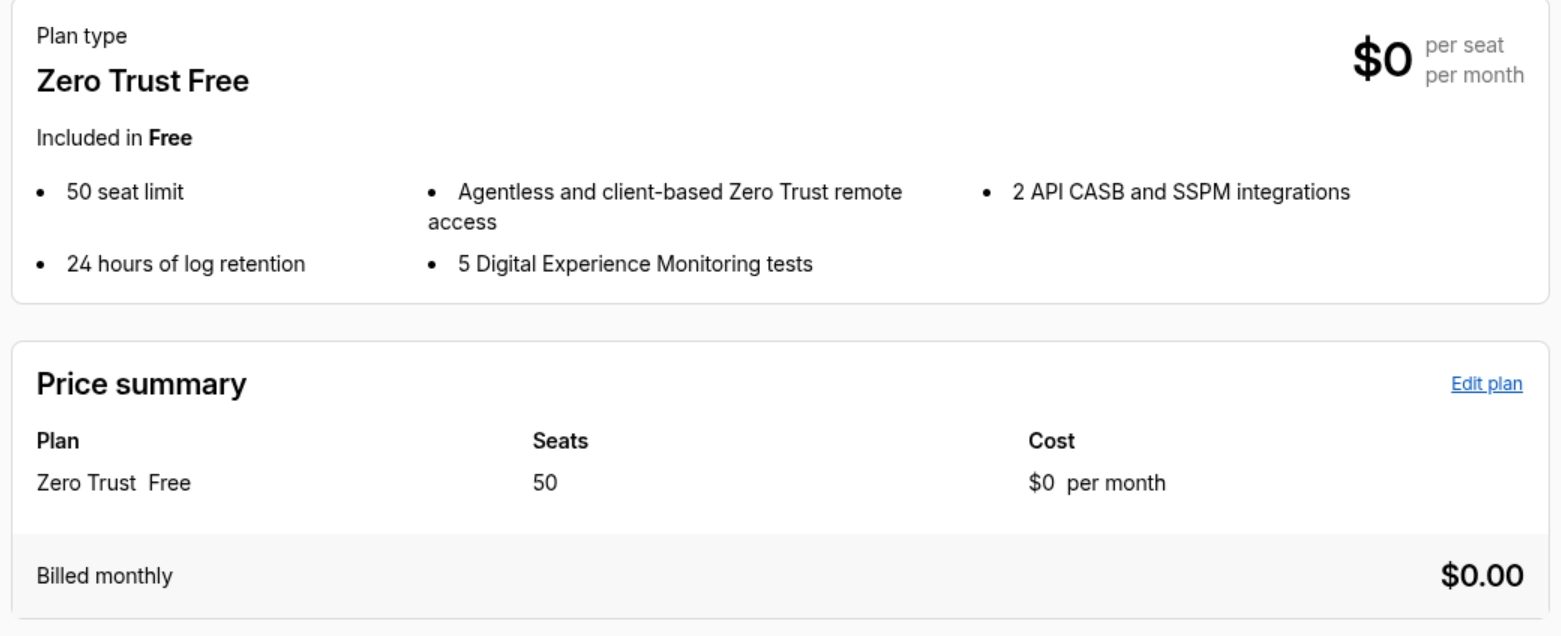
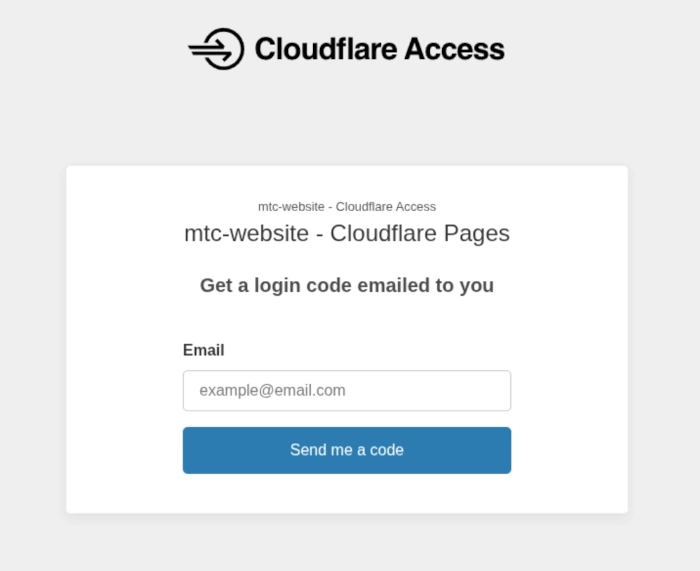
Add the subscription, set a sensible team name, and then try to visit a staging site again. You should see this:
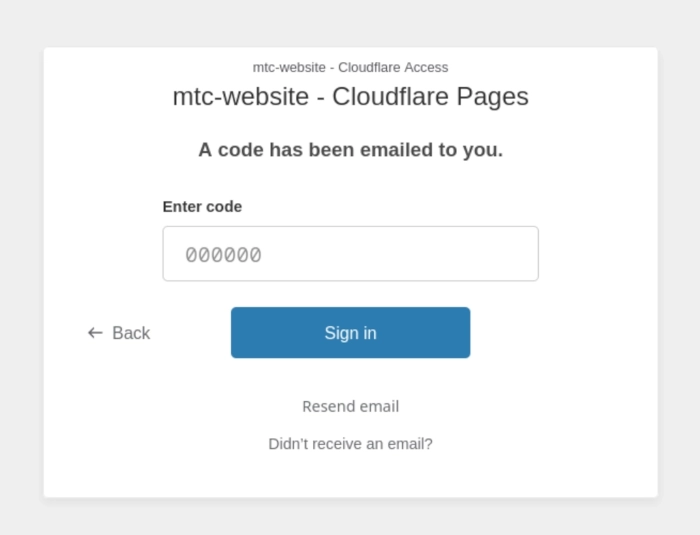
To log in, you’ll need a code from your inbox:
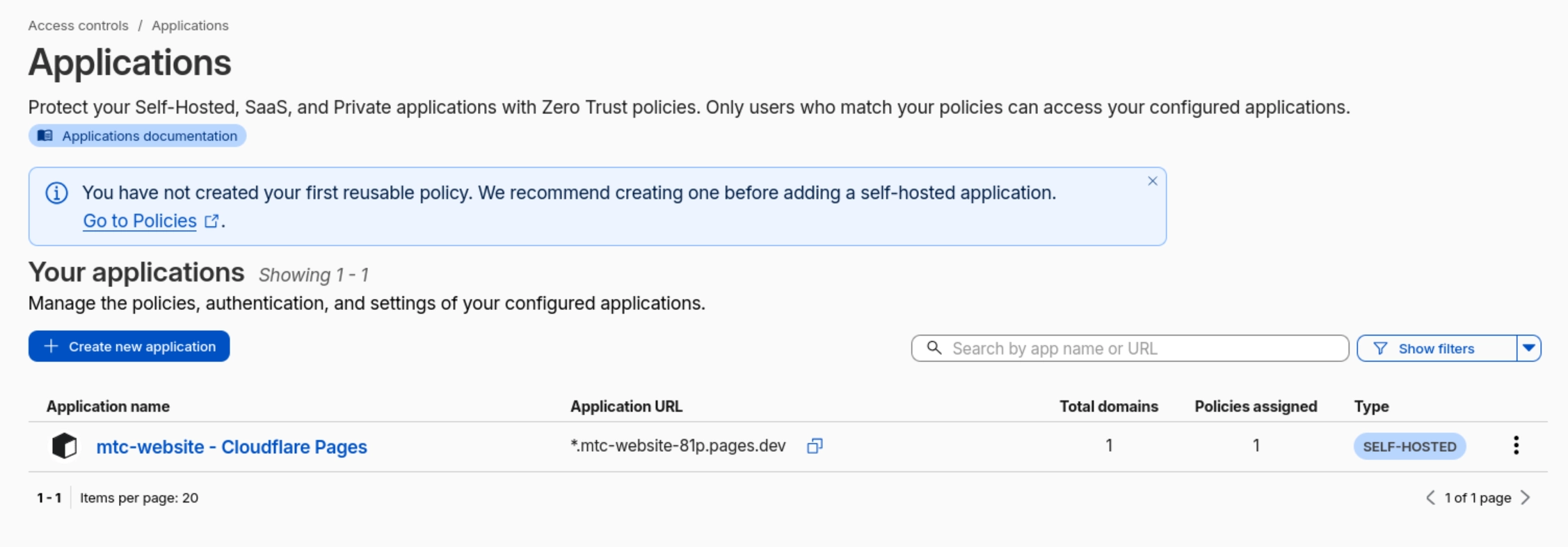
And you should have config for the site under the Access Controls » Applications:
To add other users to a site, configure the access policy assigned to it (this’ll be a default policy):
There are also settings to add a logo, enforce MFA, set the session duration, and a range of other settings. Some settings require you to first define your own access policy.
If you have a lot of private sites or apps, you can enable the Access launcher, which serves as a handy portal for users to click through to all their allowed apps.
Topics
06 May 2026
A custom Hugo sitemap that works with a Pages worker

29 Apr 2026
We've been knocking out some little tools...

10 Apr 2026
A little CLI tool to do lots of digs

29 Mar 2026
Contrary to common understanding (and their own marketing), VPNs offer little in terms of security...

24 Mar 2026
Using Hugo and Cloudflare Pages to generate and host a static website for free.